
How can I add a 2D external surcharge in my DeepEX model?
Updated: May 20
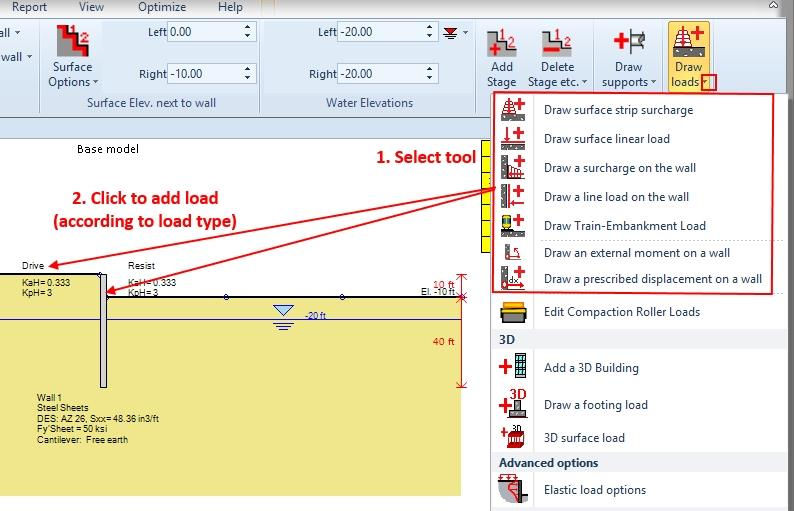
In DeepEX, the process of adding loads to the model area is intuitive and straightforward, facilitated by the Draw Loads toolbar accessible from the General tab. By selecting the desired load type and clicking on the model area, users can effortlessly introduce external loads into their designs.
For surface strip surcharges, initiating the process involves clicking on two points on the ground, typically from left to right. Similarly, for surface point loads and train loads, a single click on the ground surface suffices. When dealing with loads on walls, users need to click on one or two points on the wall, depending on the load type.
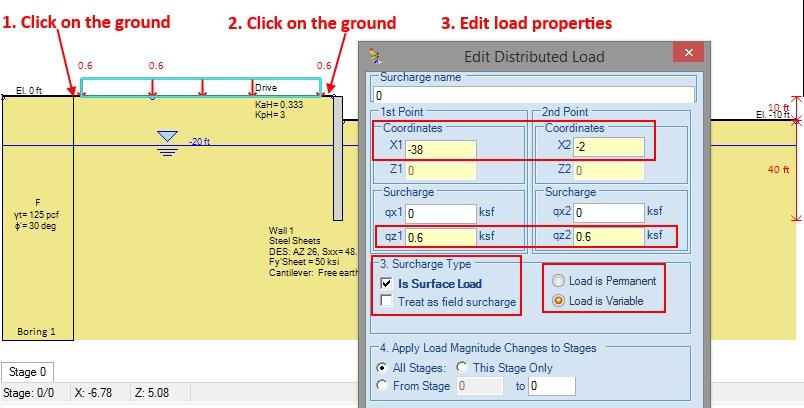
Once a load is drawn on the model area, the Edit Loads dialog emerges, providing users with a platform to further customize the load parameters. This dialog, tailored to the selected load type, allows users to define precise load locations (X coordinates for ground surface, Z coordinates for walls) and specify the load magnitude.
For surface strip surcharges or point loads, after selection and placement, users can refine parameters such as load position (X coordinates) and load magnitude qz in the Edit Loads dialog. If the load necessitates placement below the ground surface to simulate underground conditions, users can deselect the "Is Surface" option and define the load elevation accordingly.
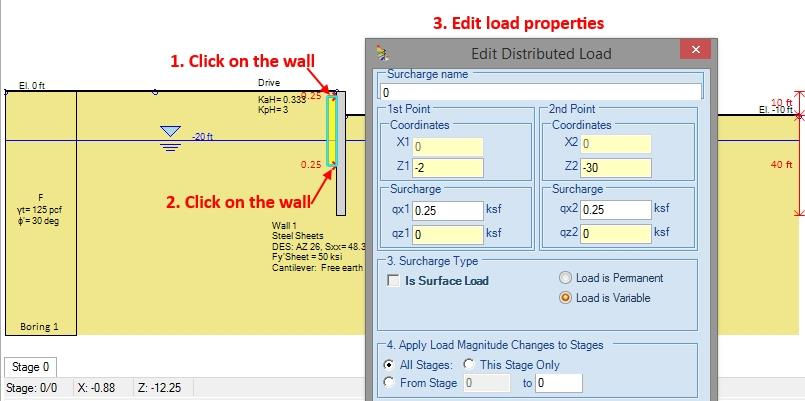
Similarly, for strip surcharges or point loads on walls (load, moment, prescribed displacement), users select the tool, place it by clicking on one or two points on the wall, and then adjust parameters such as load elevation on the wall (Z coordinates) and load magnitude qx in the Edit Loads dialog.
This methodical approach ensures users can seamlessly add, adjust, and fine-tune various load types within DeepEX, empowering them to accurately model different loading scenarios critical for deep excavation design and analysis.
Let us show you how to reduce your design time by up to 90%!


