

How can I simulate a micropile soldier pile wall with a hollow bar in DeepEX?
Updated: May 20
In DeepEX, you can simulate various wall types, including micropile walls reinforced with rebars or hollow bars. Micropile soldier pile walls can be modeled with or without external casing in specific portions of the pile. In this guide, we’ll walk you through how to simulate a micropile soldier pile wall with a hollow bar, using a casing in the upper portion of the micropile and no casing in the lower portion. Follow the steps below:
Steps to Simulate a Micropile Soldier Pile Wall:
Select the Wall Type:
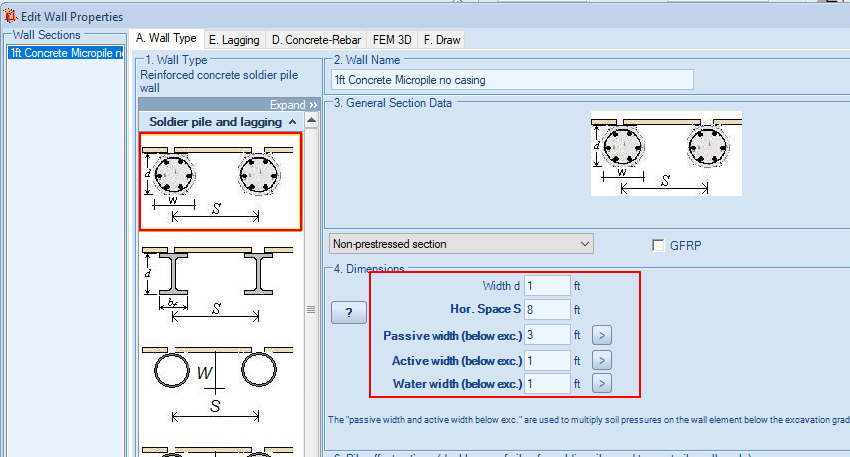
Start by selecting the appropriate wall type in DeepEX. In this case, you’ll want to choose a soldier pile wall with concrete piles.
Define Pile Properties:
Set the pile spacing (center-to-center distance between consecutive piles).
Define the pile diameter based on the project specifications.
Define the widths for the calculation of the active, passive and water pressures below the excavation where there is no lagging.
3. Define the Reinforcement (Hollow Bar):
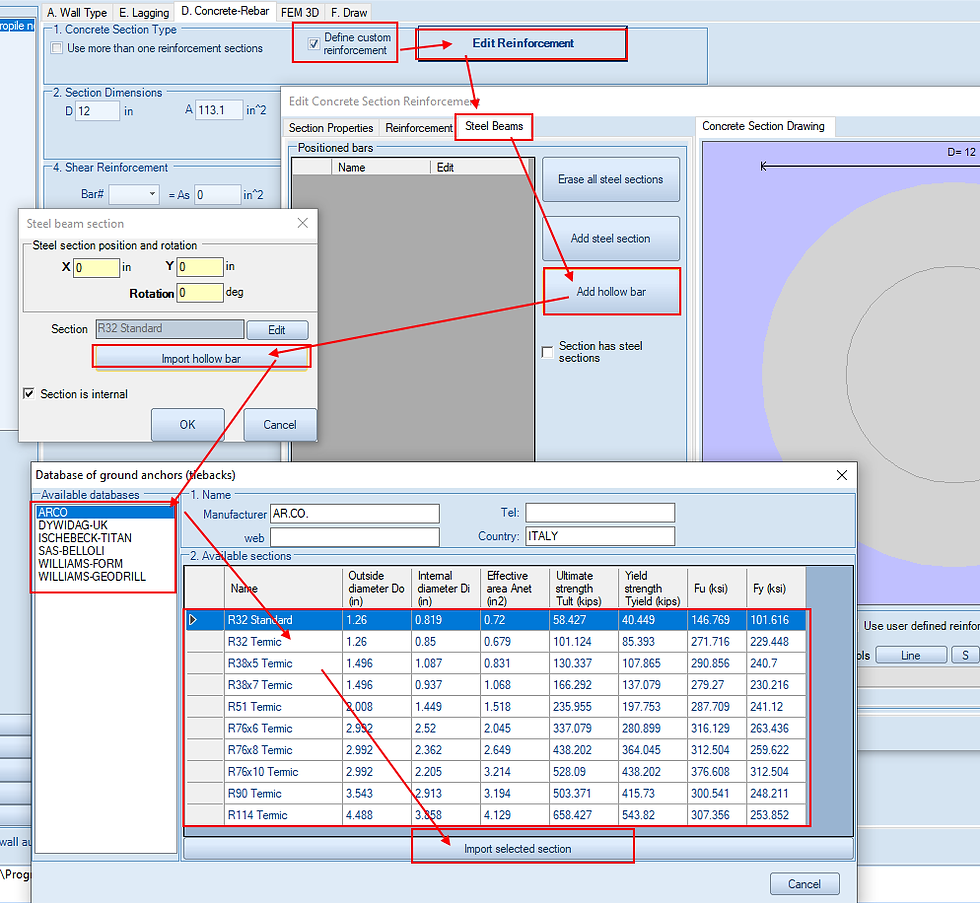
Go to the “Concrete Rebars” tab and select the option to create a custom reinforcement.
In the custom reinforcement dialog, navigate to the “Steel Beams” tab.
Add a hollow bar by selecting the option to import a hollow bar.
In the import dialog, choose the appropriate hollow bar from the available options and click Import.
After importing the hollow bar, confirm your selections by pressing OK in the intermediate dialogs, until you return to the main custom reinforcement dialog.
Press OK again to finalize the reinforcement for this wall section.
4. Create an Upper Section with Casing:
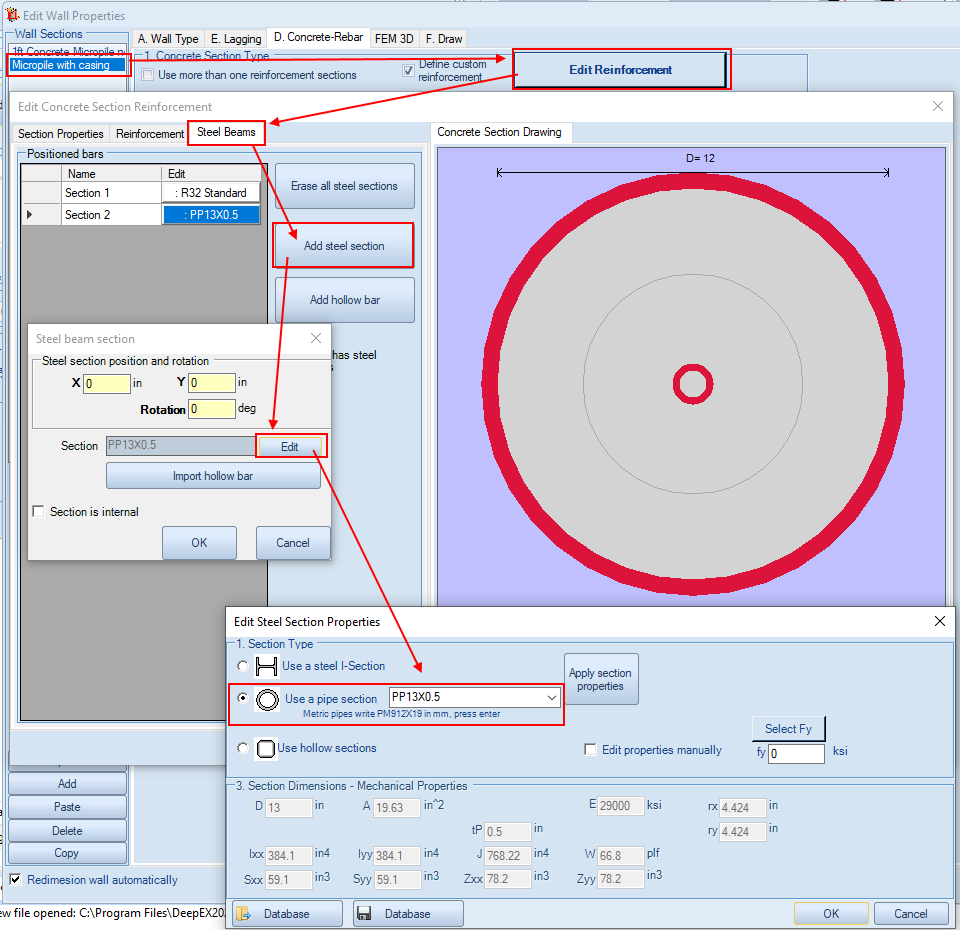
Add a new wall section. Typically, this new section is a copy of the previously edited concrete pile with the hollow bar reinforcement.
In this new section, edit the custom pile properties to add a steel beam that will serve as the casing.
Choose to add a pipe and define its thickness and diameter to represent the external casing for this portion of the pile.
After configuring the casing, close all dialogs to save the sections.
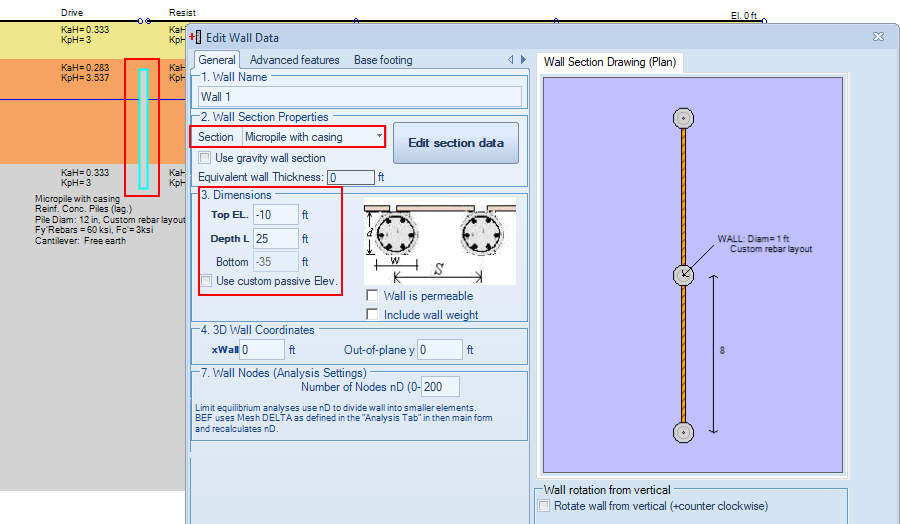
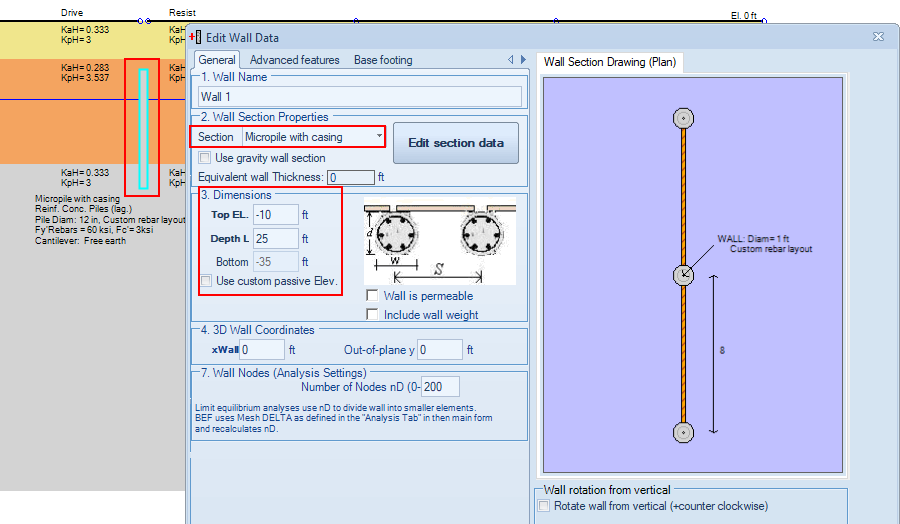
Assigning Sections to Wall Parts in the Model: Once you’ve created the sections with and without the casing, you need to assign them to the appropriate wall parts in your model.
1. Define the Bottom Wall Section (Without Casing):
In the model area, access the wall properties and adjust the top elevation and length of the wall to represent the portion without the casing.
Assign the corresponding pile section (concrete pile with hollow bar but without casing).
2. Add the Upper Wall Section (With Casing):
Use the “Draw Left Wall Element” tool to create a new wall part above the main wall section.
Define the top and bottom elevations of this upper section.
Assign the section you previously created with the casing.
Running the Analysis:
Once your wall model is complete with both the upper (cased) and lower (non-cased) sections defined:
Run a Non-Linear analysis instead of using the traditional Limit Equilibrium Method (LEM).
Non-Linear analysis will allow you to accurately account for the distribution of the pressures on each wall part when the “additional wall element” tool is used in DeepEX.
Ensure that you define strict construction stages to reflect the construction process accurately and improve the accuracy of the results.
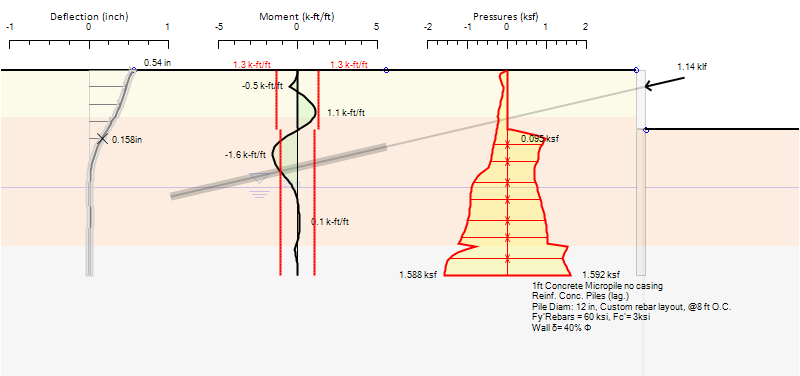
By following these steps, you can simulate a micropile soldier pile wall with a hollow bar and casing using DeepEX software. The analysis will show you how the wall behaves under different loading conditions and construction stages, providing insight into the capacities along the wall sections.
Let us show you how to reduce your design time by up to 90%!


