

Can I export all pressure diagrams separately in graphs and tables in DeepEX?
Updated: May 20
DeepEX allows users to view and export separate pressure diagrams and tables for different load components, including soil, water, surcharge, and seismic pressures. This can be done for both Limit Equilibrium Method (LEM) and Non-Linear (NL) analyses. Understanding how to extract and interpret these results is essential for design verification, documentation, and reporting.
Overview
When you run a LEM analysis in DeepEX, the software can display and export individual pressure components acting on the wall. These include (e.g.):
Soil pressures
Water pressures
External surcharges
DeepEX also provides access to detailed tabulated data, allowing you to select the wall and construction stage to review the corresponding pressure values. Each pressure component appears in a separate column, making it easy to isolate and export specific data.
Step-by-Step Procedure
1. Run the LEM Analysis
Open your DeepEX project and select the stage to analyze.
Click Run Analysis to perform the LEM calculation.
Once complete, go to the Results tab and select Pressure Diagrams to display the pressure distributions.
2 - Display Individual Pressure Components
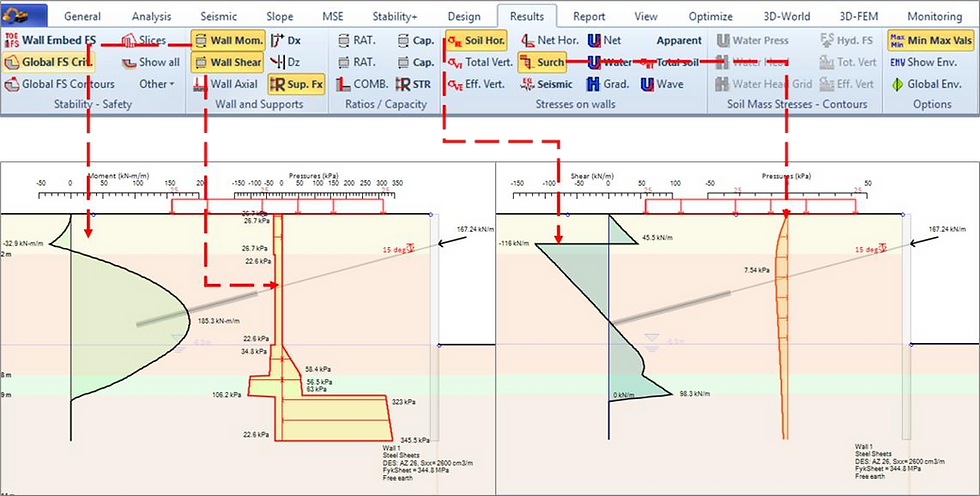
1. From the Results window, select which pressure components to display (Figure 1):
Soil pressure
Water pressure
Surcharge pressure
Seismic pressure
2. Use the checkboxes to toggle each pressure component on or off. The diagram updates automatically to reflect the selected pressures.
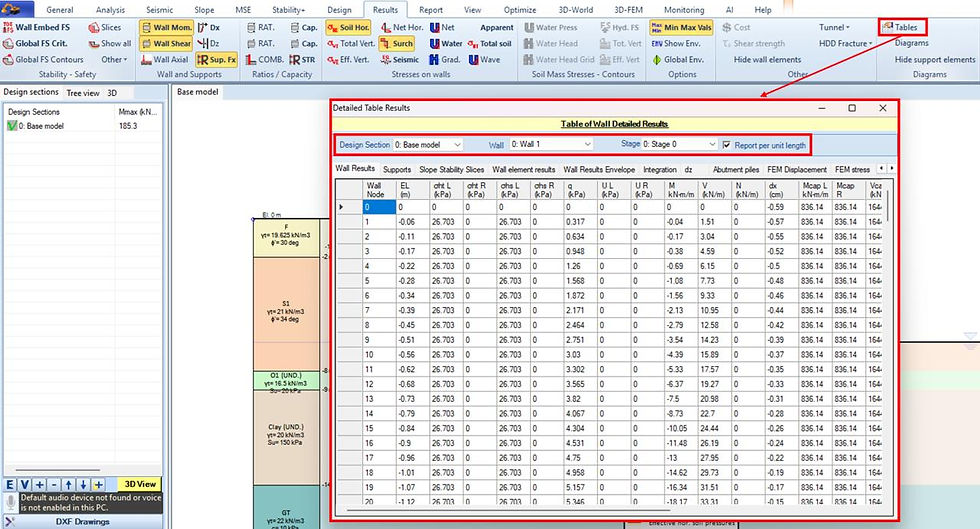
3 - Access the Pressure Tables (Figure 2)
1. Open the Table Results from the Results toolbar.
2. Choose the wall and stage you wish to examine.
3. The table displays all pressure components in separate columns for easy reference.
4. You can copy or export these values directly to Excel or text format for further use.
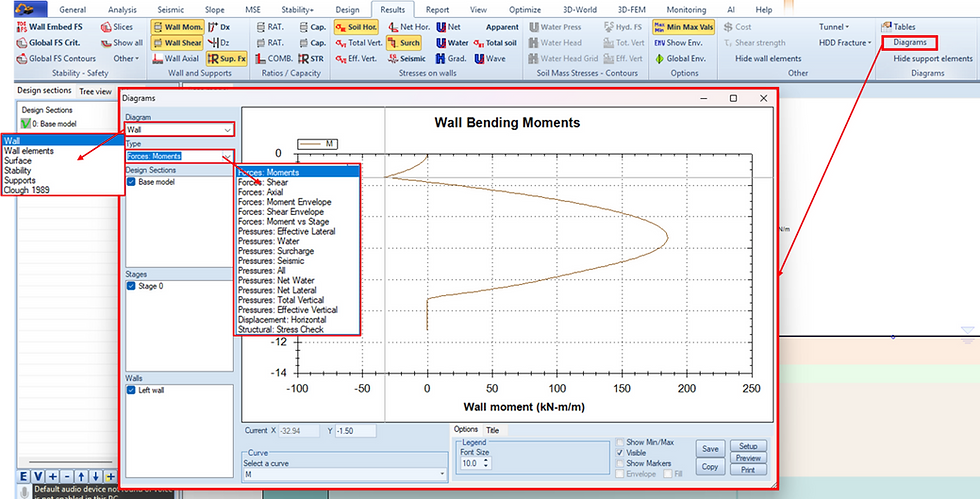
4. Export Graphs and Tables (Figure 3)
1. In the Results Tab, click Diagrams to access all the available diagrams, e.g., for walls and supports.
2. Select the type of graph, format the area and legend.
3. Press Print or Copy to export.
Non-Linear Analysis (NL) – Important Notes
When performing Non-Linear Analysis, the soil pressure diagram automatically includes the effects of external surcharges. This means the surcharge component is already integrated into the total soil pressure, both in the graph and in the table output.
In NL analysis:
The number of nodes corresponds to the number of soil springs (pressure points) along the wall.
The mesh density (vertical spacing between springs) is controlled by the Mesh Delta value defined by the user.
Tips and Good Practice
Verify components: Before exporting, confirm whether surcharge effects are already included, especially for NL analysis.
Use clear file names: Rename exported graphs and tables with identifiers such as “Stage3_SoilPressure_LEM.png” for easy reference.
Leverage Excel exports: Exporting to Excel facilitates comparison, documentation, and report integration.
Compare results: Viewing each pressure type separately helps verify loading assumptions and overall wall response.
By following these steps, you can efficiently export and document all pressure components from DeepEX, ensuring transparent design checks and professional reporting. The ability to separate, visualize, and export each pressure source strengthens both the analytical and presentation aspects of retaining wall design.
Let us show you how to reduce your design time by up to 90%!


